
You open your WooCommerce dashboard. Sales are up. Orders are coming in. Everything looks good.
But at the end of the month, you check your bank account and wonder: where did all that money go?
The answer is almost always the same — you were tracking revenue, not profit. And those two numbers can be very, very different.
This guide walks you through how to properly track your cost of goods and real profit margins in WooCommerce, so you know exactly where your business stands.
Why WooCommerce Doesn’t Show You Your Real Margins (Out of the Box)
WooCommerce is excellent at tracking orders, revenue, and refunds. But it has a blind spot: it has no idea what your products actually cost you.
When you sell a product for €89, WooCommerce records €89 in revenue. But if that product cost you €32 to buy, your gross profit is €57 — a 64% margin. If it cost you €75, your margin is only €14, or 16%. Those are completely different businesses.
Without cost tracking, you’re flying blind. You might be pushing marketing spend on products that barely break even, over-ordering low-margin SKUs, or underpricing items you could sell for more.
What Is Cost of Goods Sold (COGS)?
Cost of Goods Sold — or COGS — is the direct cost of the products you’ve sold. For a WooCommerce store selling physical goods, this typically includes:
- Purchase price — what you paid your supplier per unit
- Shipping costs (optional) — the freight cost to get goods to your warehouse
- Payment gateway fees (optional) — what your payment processor takes per transaction
COGS does not include your fixed overhead like rent, salaries, or marketing. It’s purely the cost of the product itself.
Your gross margin is calculated as:
Gross Margin = (Revenue − COGS) / Revenue × 100
For example: you sell a product for €89, it cost you €32.
Gross Margin = (89 − 32) / 89 × 100 = 64.0%
The Problem With Tracking COGS Manually
Most store owners start by tracking costs in a spreadsheet. You export orders from WooCommerce, add a cost column, and calculate margins manually.
This works — for about five minutes. As soon as you have more than a few dozen products and a few hundred orders per month, it becomes:
- Time-consuming — you’re doing this manually every week or month
- Error-prone — one wrong formula and your data is off
- Retrospective — you’re always looking backwards, never in real time
- Disconnected — your margins don’t live where your orders do
The bigger problem is that costs change. Your supplier raises prices. You negotiate a better deal. You switch carriers. A spreadsheet doesn’t know any of that.
How to Track COGS Properly in WooCommerce
The right approach is to track costs directly at the product level, inside WooCommerce, so that every order automatically calculates profit at the time of sale.
Here’s how to set it up:
Step 1 — Assign a cost to each product
For each product in your catalog, you need to store the purchase cost per unit. This should be the net price you paid your supplier, excluding VAT.
If you’re using a plugin like Synklio Cost of Goods, this adds a “Cost of Goods” field directly in the WooCommerce product editor, right next to the regular price. You enter the cost, and the plugin instantly shows you the gross margin.
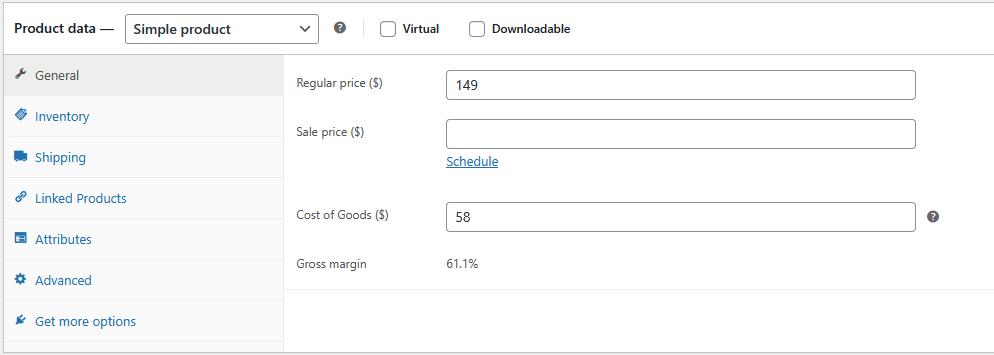
For variable products (different sizes, colors, configurations), you can set a cost per variation — which matters a lot if your margin varies significantly between variants.
Step 2 — Snapshot costs at time of sale
This is the part most store owners miss. Product costs change over time. If you calculate margins today based on today’s cost, but an order was placed three months ago when the cost was different, your historical data is wrong.
The correct approach is to snapshot the cost at the time of each order. When an order moves to Processing or Completed, the plugin records the cost that was in effect at that moment. Your historical reports stay accurate even if you update prices later.
Step 3 — Track real profit per order
Once costs are snapshotted, every order in your admin panel shows:
- Revenue (what the customer paid, excl. tax)
- Cost of goods (what you paid your supplier)
- Gross profit (the difference)
- Margin % (profit as a percentage of revenue)
This means you can immediately spot orders with unusually low margins — maybe a discount was applied, or a product was mispriced.
Step 4 — Analyse by product and period
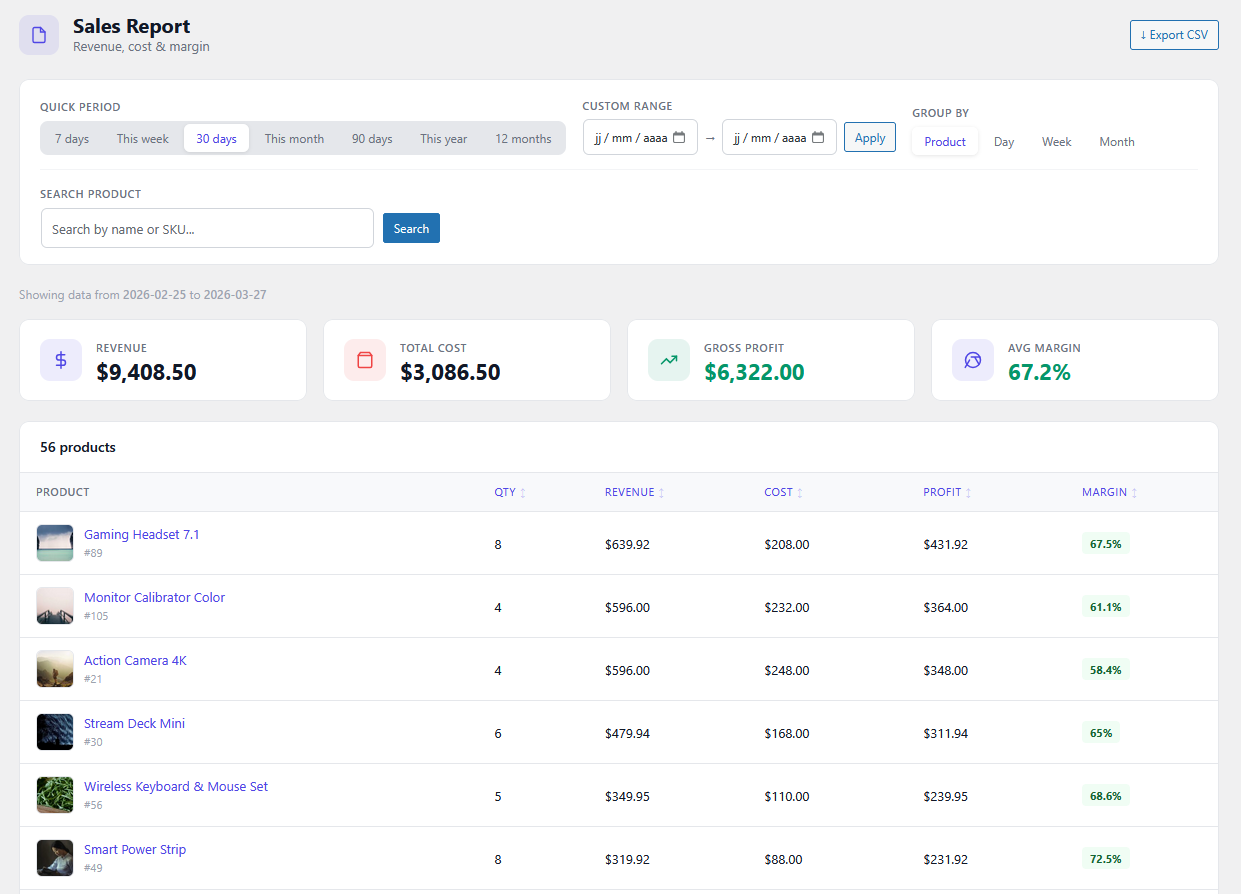
Order-level data is useful, but the real power comes from aggregated reports:
- Which products generate the most profit? (Not just the most revenue)
- Which products have the lowest margins? (Maybe you should raise the price, or stop selling them)
- How has your average margin evolved over time? (Are supplier price increases eating into your profitability?)
- What is your current stock worth at cost? (Useful for accounting and cash flow planning)
What a Good COGS Setup Looks Like in Practice
Here’s a realistic example. Say you run a WooCommerce store selling e-scooters and accessories.
Your bestseller is a scooter at €899. Your cost is €420. Margin: 53%.
But your top-selling accessory — a helmet at €49 — only costs you €8. Margin: 84%.
Without COGS tracking, you’d probably push more marketing budget toward the scooter because it generates more revenue. With COGS tracking, you’d realise the helmet is actually more profitable per euro of revenue, and you’d adjust your strategy accordingly.
This kind of insight is only possible when you track costs properly.
Common Mistakes to Avoid
Tracking cost excl. VAT vs incl. VAT Always use your cost excl. VAT. Your revenue in WooCommerce is also tracked excl. VAT (or should be), so comparing the two on the same basis gives you accurate margins.
Ignoring shipping and gateway fees If your supplier charges shipping per order, or your payment processor takes 2-3%, these eat into your margin. A good COGS plugin lets you include these as optional cost components.
Not updating costs when supplier prices change This is a slow leak. If your supplier raised prices six months ago and you haven’t updated your cost data, your margin reports are overstating your profitability. Schedule a quarterly review of your cost data.
Confusing gross margin with net margin COGS tracking gives you gross margin — revenue minus product cost. Your net margin also deducts fixed costs (rent, salaries, ads). Both matter, but gross margin is the one you can act on at the product level.
Getting Started With Synklio Cost of Goods
Synklio Cost of Goods is a WooCommerce plugin built specifically for store owners who want to track real profitability without leaving WP Admin.
Free features include:
- Cost of goods field on every product and variation
- Live gross margin display as you type the cost
- Cost column in the product list
- Cost of goods column on orders
Pro features add:
- Sales Report — profit, cost and margin by product, category and period
- Stock Report — inventory valuation at cost and potential profit
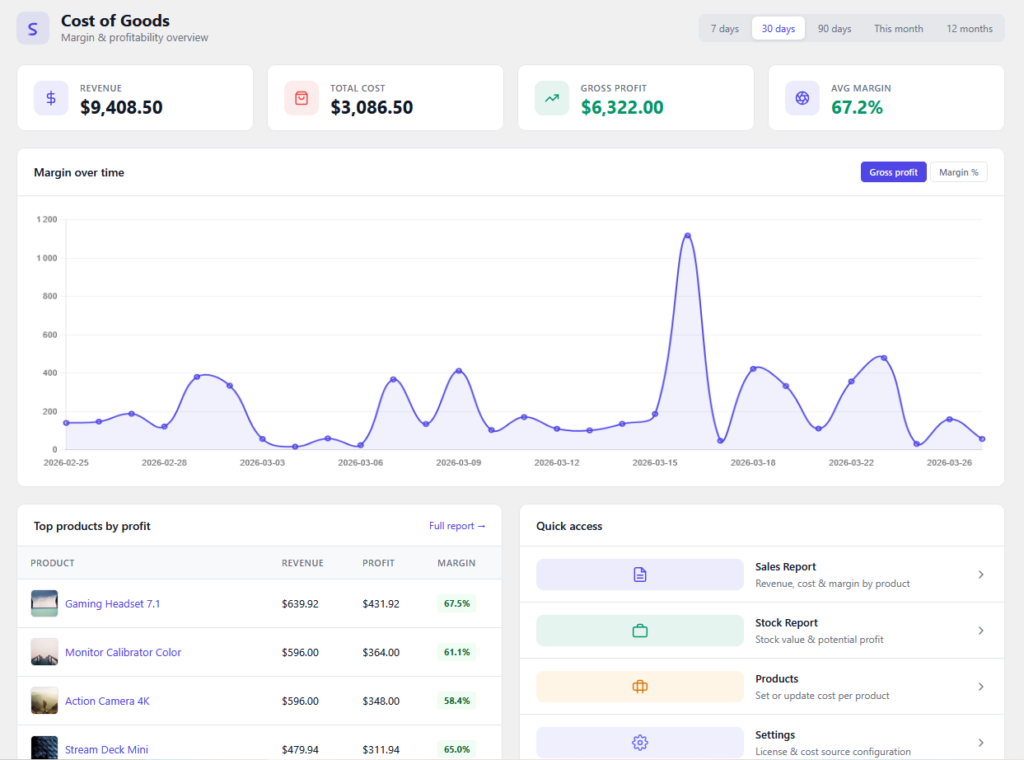
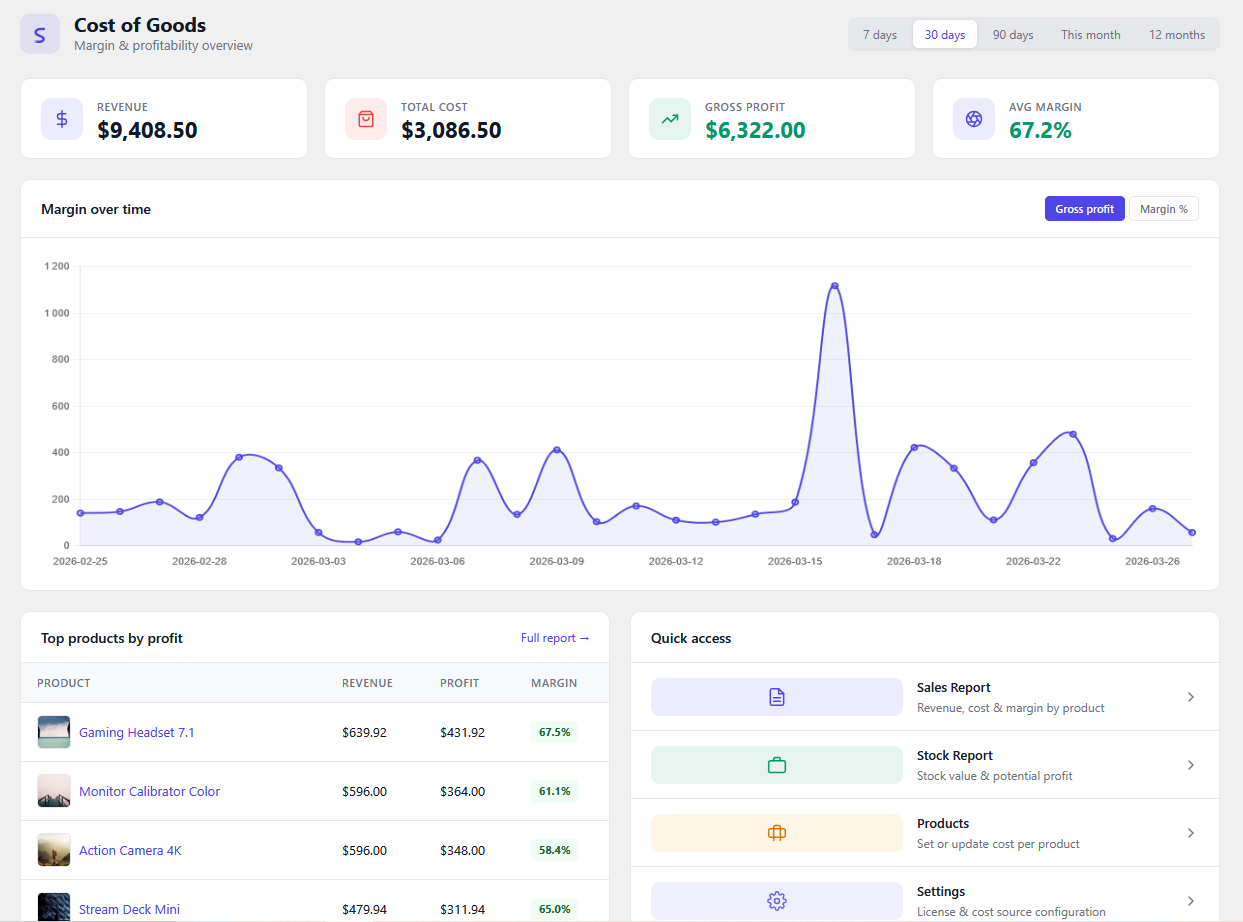
- Dashboard — KPI overview with margin over time chart
- CSV export and bulk cost import
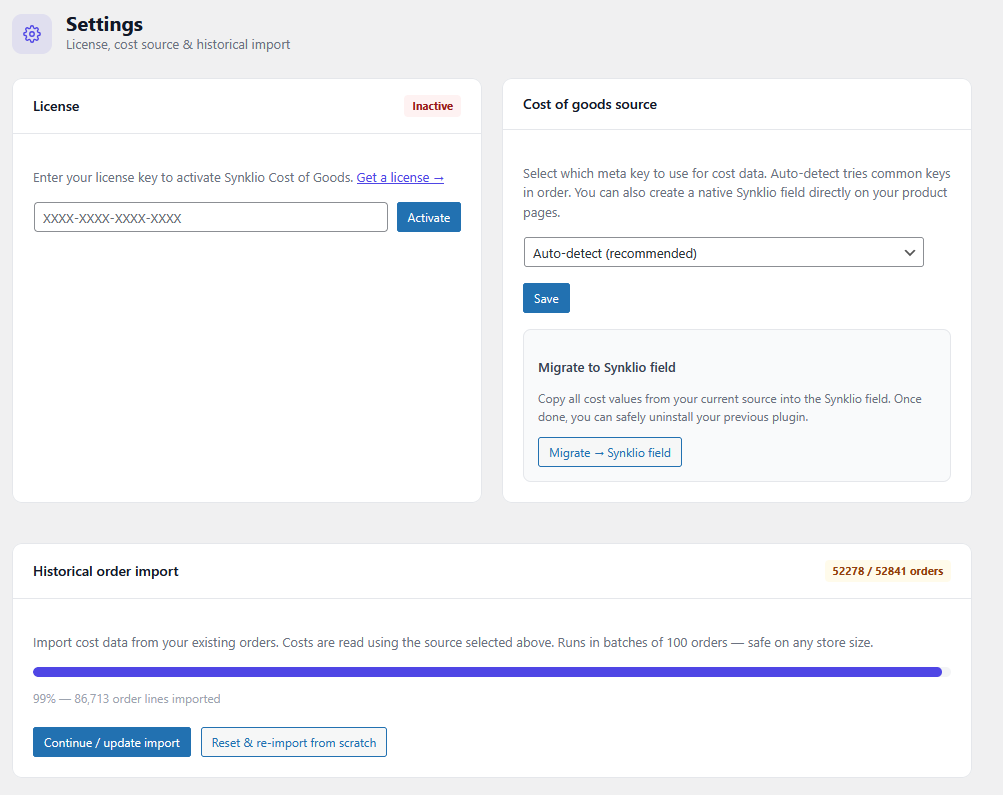
- Historical order import (backfill old orders with cost data)
You can start with the free version, add costs to your products, and see your margins immediately — no configuration required.
Summary
Tracking your real profit margins in WooCommerce comes down to three things:
- Store a cost for every product — what you actually paid your supplier
- Snapshot that cost at the time of each sale — so historical data stays accurate
- Report on it regularly — by product, by period, and at the order level
Revenue is vanity. Profit is sanity. Once you have real COGS data in WooCommerce, you’ll wonder how you ever ran your store without it.